 INTEGRATIONS · MICROSOFT INTUNE · NEW
Your endpoint inventory, without retyping.
Varmo reads the managed devices from Microsoft Intune and creates them as assets – as groups, the way an ISMS usually records endpoints, or individually. Varmo only reads; nothing changes in Intune.
- Included from the Pro plan
- As groups or individually
- Secret stored encrypted
Microsoft Intune- Managed devices
- Microsoft Graph
- Assets (proposal)
- Device, model, serial number
- Compliance
- Person by email
- People without access
- nothing back to Intune
AT A GLANCE
From Pro, Varmo imports managed devices from Microsoft Intune via Microsoft Graph (read permission DeviceManagementManagedDevices.Read.All only) – as groups by operating system, model or device category with count and compliance, or individually with serial number and person; assets always arrive as a proposal for acceptance.
Requirements
- Plan: Varmo Pro or Ultimate
- In Varmo: “Manage integrations” and “Import data”, plus the right to create assets
- Intune: Intune in your own Microsoft 365 directory; the devices are listed under intune.microsoft.com › Devices › All devices
- Entra ID: Someone who may register applications and grant admin consent (e.g. the “Application Administrator” role, or “Global Administrator” for the consent)
By default, the ISMS managers have these rights in Varmo.
Intune does not return devices that are only registered in Entra ID.
For iPhone and iPad only
- In Intune, under Devices › Enrolment › Apple, the “Apple MDM push certificate” with the status “Active”.
- Without the certificate, the Company Portal rejects enrolment with “AccountNotOnboarded”.
- The certificate expires after one year and must be renewed with the same Apple ID.
Setup
Step 1: Register an application in Entra ID
In Entra ID, register an application with read permission for the managed devices.
1a: Register: Name e.g. “Varmo Intune import”, account type “Single tenant only”, no redirect URI.
Menu path: entra.microsoft.com › App registrations › “New registration”
1b: Add the permission: only
DeviceManagementManagedDevices.Read.All, read only.Menu path: API permissions › “Add a permission” › Microsoft Graph › Application permissions
1c: Grant consent: “Grant admin consent for …”.
Important:Without consent, Microsoft rejects every request.
1d: Create a secret: Expiry e.g. 12 months; copy the value straight away, it is not shown again afterwards.
Menu path: Certificates & secrets › “New client secret”
1e: Note the IDs: On the application’s overview: Directory (tenant) ID and Application (client) ID.
Details
- Account type: “Single tenant only – <name of your directory>” (formerly “Accounts in this organizational directory only”).
Step 2: Enter credentials
Add the “Microsoft Intune” integration and enter the IDs and the secret under “Enter credentials”.
Menu path: ISMS settings › Integrations › “Add integration” › Microsoft Intune
Input:Directory ID (or the domain, e.g. company.onmicrosoft.com)Application IDValue of the secretResult: Varmo checks the connection immediately. The secret is stored encrypted and never displayed again.
Details
- Before it expires, create a new secret and enter it under “Replace credentials”.
Step 3: Groups or individual devices
“Import data” › Assets, then choose “As groups” (recommended) or “Individually”.
As groupsrecommended
- One asset per operating system (e.g. “Windows devices”), per manufacturer and model or per device category in Intune
- With count, compliance, operating system versions, models and last contact in the description
- Only counts and summaries, no people
Individually
- One asset per device with device name, serial number, person (by email address, otherwise empty) and compliance
- At most 10,000 devices
Details
- Only details of managed devices: name, operating system and version, manufacturer, model, serial number, compliance, last contact, device category, ownership (corporate/personal) and the email address of the assigned person.
- Varmo only maps people to members; Varmo does not store the names of people without access to Varmo.
- No writing to Intune, no device control.
- Optionally only certain operating systems and only corporate devices (without personal devices).
- Intune lists devices that people enrol themselves via the Company Portal as “Personal” – these are excluded with “Corporate devices only”.
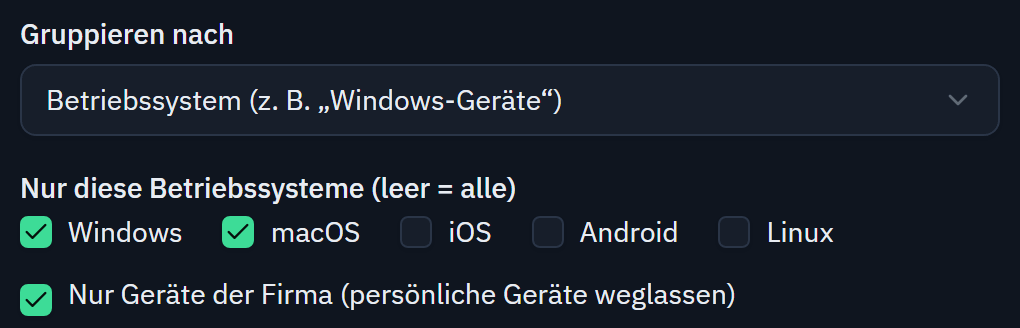
Groups per operating system (e.g. “Windows devices”), limited to selected operating systems and corporate devices. Step 4: Choose the category and import
Choose the category in Varmo as a fixed value (e.g. “Endpoints”), check the preview and “Start import”.
How entries arrive
- Assets
- as a proposal: in the inventory only once accepted (notice in the inventory and as a task)
No import ever grants an approval.
- Protected
- An import never changes what has already been reviewed, implemented or approved in Varmo.
- Conflict
- Changed in both systems: the version in Varmo applies until the ISMS manager decides.
- Undo
- Every import: new entries are deleted, updated ones are reset – unless they have been changed in Varmo since.
- Logged
- Everything runs with your permissions and the rules of Varmo, just as if done by hand, and appears in the change log.
Repeated imports and special cases
- Repeated imports recognise groups and devices again: changed counts or details are updated.
- Varmo reports devices removed in Intune as “no longer present” but deletes nothing.
- Repeated imports recognise every entry by its reference: changed entries are updated, unchanged ones stay as they are.
- If an entry is missing from the next import, Varmo reports it as “no longer present” but deletes nothing.
If something doesn’t work
“The secret is incorrect”
Enter the value of the secret, not the secret ID.
“The secret … has expired”
Create a new secret in Entra ID and enter it.
“The application was not found in the directory”
Check the application ID and directory ID. The same applies to “The directory was not found”.
“The application lacks the permission DeviceManagementManagedDevices.Read.All …”
Add the application permission (not delegated) and grant admin consent.
“Intune is not available in this directory”
Check the Intune licence.
“Connected; Intune does not report any devices yet”
Intune does not manage any device yet: check under intune.microsoft.com › Devices › All devices (not in Entra ID); new devices sometimes only appear after a few minutes.
“Intune returns no devices for this filter”
The filter excludes all devices, often “Corporate devices only” for personally enrolled devices.
“More than 10,000 devices”
Narrow down by operating system or import as groups.
Switch off
In Varmo
- Remove the connection under ISMS settings › Integrations – the secret is deleted
In Entra ID
- Delete the secret or remove the app registration
Imported assets remain.
Microsoft, Entra, Intune and Teams are trademarks of Microsoft Corporation; JIRA is a trademark of Atlassian; ServiceNow is a trademark of ServiceNow, Inc. Their mention does not imply a partnership.
Frequently asked questions
Which permission does the application need in Entra ID?
Only the Microsoft Graph application permission DeviceManagementManagedDevices.Read.All with admin consent. With it, Varmo reads managed devices and changes nothing in Intune.
Should I import devices as groups or individually?
As groups is recommended: one asset per operating system, model or device category with count and compliance, without people. Individually creates one asset per device with serial number and assigned person.
Why are devices that are in Entra ID missing?
Varmo only imports devices that Intune manages (intune.microsoft.com › Devices › All devices). Intune does not return devices that are only registered in Entra ID.
How close are you to ISO/IEC 27001?
In a personal demo, we show you the way to the readiness report, with no obligation. Or try it free for 30 days with every feature.