 INTEGRATIONS · JIRA CLOUD · NEW
What runs in JIRA is in your ISMS too.
Varmo imports the issues of a JIRA project or a JQL query, for example as measures. Varmo only reads; nothing changes in JIRA.
- Included from the Pro plan
- Preview before the import
- Undo for each import
JIRA Cloud- Project
- Issue type
- JQL
- Measures
- Risks
- Exceptions
- Assets
- Findings
- Mapped fields
- Description as text
- People by email
- Images, attachments
- People without access
- nothing back to JIRA
AT A GLANCE
From Pro, Varmo imports issues from JIRA Cloud (REST API v3, sign-in with email address and API token) as risks, measures, exceptions, assets or findings – by project and issue type or via JQL, up to 10,000 issues, with field mapping, a preview, conflict detection and undo; the token is stored encrypted.
Requirements
- Plan: Varmo Pro or Ultimate
- In Varmo: “Manage integrations” and “Import data”, plus the right for the target (e.g. record measures)
- In JIRA: JIRA Cloud with an address of the form
https://<name>.atlassian.net - In JIRA: An Atlassian account that may read the projects; ideally a dedicated one just for the import
By default, the ISMS managers have these rights in Varmo.
JIRA Server and Data Center are not supported.
Setup
Step 1: Create an API token
Create an API token at Atlassian, give it a name (e.g. “Varmo”) and choose the expiry.
Menu path: id.atlassian.com › Security › API tokens › “Create API token”
Important:Choose the option without scopes, not “Create API token with scopes”.
Result: Copy the token straight away – it is only shown once.
Details
- Tokens with scopes only work via a different Atlassian address.
- Direct address:
id.atlassian.com/manage-profile/security/api-tokens
Step 2: Enter credentials
Add the “JIRA Cloud” integration and enter the Atlassian account’s details under “Enter credentials”.
Menu path: ISMS settings › Integrations › “Add integration” › JIRA Cloud
Input:Address (https://<name>.atlassian.net)Email address of the Atlassian accountAPI tokenResult: Varmo checks the connection immediately. The token is stored encrypted and never displayed again.
Details
- Before the token expires, create a new one and enter it under “Replace credentials”.
Step 3: Choose the issues
“Import data”, choose the target (usually measures) and narrow down by project and issue type or with a JQL query.
Example:
labels = securityDetails
- Enter your own JQL query without
ORDER BY. - Empty issue type = all types.
- At most 10,000 issues per import.
- Enter your own JQL query without
Step 4: Map fields and values
For each field in Varmo, choose the matching JIRA field, then the values; the mapping is saved for the next import.
Details
- Varmo maps people to members by their email address. If Atlassian does not show the email (Profile › Visibility), map the name to a member or leave the field empty; Varmo does not store the names of people without access.
- Formatted descriptions arrive as readable text (paragraphs, lists, links); images and attachments do not.
- Nothing changes in JIRA: comments, status and fields remain unchanged.
- Example: title ← Summary, description ← Description, deadline ← Due date, status ← Status, responsible ← Assignee.
- Values, such as “To Do” → “Planned” and “In Progress” → “In progress”.
- Custom fields (
customfield_…) can also be selected. The examples come from the first 200 issues.
Step 5: Check the preview and import
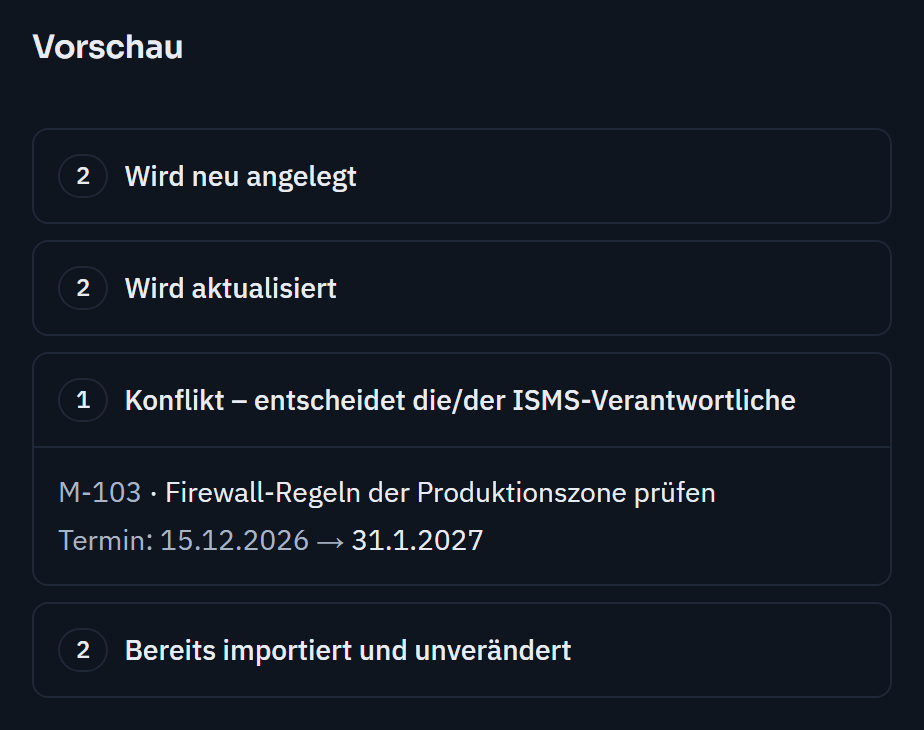
The preview shows what happens to each issue; then “Start import”.
Result: The import runs in the background and ends with a report.
How entries arrive
- Measures
- at most as “In progress”
- Risks
- as an unreviewed report
- Exceptions
- as a draft
- Assets
- as a proposal: in the inventory only once accepted (notice in the inventory and as a task)
No import ever grants an approval.
- Protected
- An import never changes what has already been reviewed, implemented or approved in Varmo.
- Conflict
- Changed in both systems: the version in Varmo applies until the ISMS manager decides.
- Undo
- Every import: new entries are deleted, updated ones are reset – unless they have been changed in Varmo since.
- Logged
- Everything runs with your permissions and the rules of Varmo, just as if done by hand, and appears in the change log.
Repeated imports and special cases
- Varmo reports issues deleted in JIRA as “no longer present” but deletes nothing.
- In the event of a conflict, the report and the entry’s page lead to “Decide conflict”.
- Repeated imports recognise every entry by its reference: changed entries are updated, unchanged ones stay as they are.
- If an entry is missing from the next import, Varmo reports it as “no longer present” but deletes nothing.
If something doesn’t work
“Sign-in to JIRA failed”
Check the email address and token; create a new token if it has scopes or has expired.
“The address must have the form https://<name>.atlassian.net”
Enter only the address, without a path.
“The JIRA account does not have permission for this”
The account may not read the project, or the project key is wrong. The same applies to the message “Not found in JIRA”.
“Please remove ORDER BY”
Remove the sorting from the JQL query.
More than 10,000 issues
Narrow down by project, issue type or JQL.
A change in JIRA is missing from the preview
JIRA Cloud search sometimes indexes changes with a delay; open the preview again a little later.
Switch off
In Varmo
- Remove the connection under ISMS settings › Integrations – the token is deleted
In Atlassian
- Revoke the API token at
id.atlassian.com
Imported entries remain.
Microsoft, Entra, Intune and Teams are trademarks of Microsoft Corporation; JIRA is a trademark of Atlassian; ServiceNow is a trademark of ServiceNow, Inc. Their mention does not imply a partnership.
Frequently asked questions
Does Varmo also support JIRA Server or Data Center?
No, only JIRA Cloud with an address of the form https://<name>.atlassian.net.
Does Varmo change anything in JIRA?
No. Varmo only reads the mapped fields of the selected issues; comments, status and fields in JIRA remain unchanged.
What happens if an issue was changed both in JIRA and in Varmo?
Then a conflict arises on the next import. The entry’s page in Varmo shows it; until the ISMS manager decides, the version in Varmo applies.
How close are you to ISO/IEC 27001?
In a personal demo, we show you the way to the readiness report, with no obligation. Or try it free for 30 days with every feature.