 INTEGRATIONS · ENTRA ID · SCIM · NEW
Leavers no longer get forgotten.
Microsoft Entra ID automatically tells Varmo who joins, changes or leaves. New people arrive as “Employees” without further rights, and Varmo locks leavers immediately – you still assign rights in Varmo.
- Included from the Pro plan
- Leavers locked immediately (ISO 27001 A.5.18, A.6.5)
- Do not count as users
Microsoft Entra ID- Joiner
- Change
- Leaver
- People as “Employees”
- Name
- Email address
- Joining and leaving
- Groups
- Rights, functional roles
- Deletion
AT A GLANCE
From Pro, Varmo supports provisioning people from Microsoft Entra ID via SCIM 2.0: new people only with an email address in a verified domain and only as “Employees”, sign-in via single sign-on, leavers locked immediately (Tenant Admins only as a task), no assignment of rights and no groups via SCIM; every change in the administration log.
Requirements
- Plan: Varmo Pro or Ultimate, Tenant Admin role
- In Varmo: Sign-in via your company (single sign-on) with Microsoft Entra ID set up and active, and the domain of your email addresses verified
- Entra ID: “Application Administrator” role (or higher)
- Licence: Automatic provisioning to your own applications (Microsoft Entra ID P1, e.g. in Microsoft 365 Business Premium)
You set up single sign-on and domains under Administration › Sign-in and security.
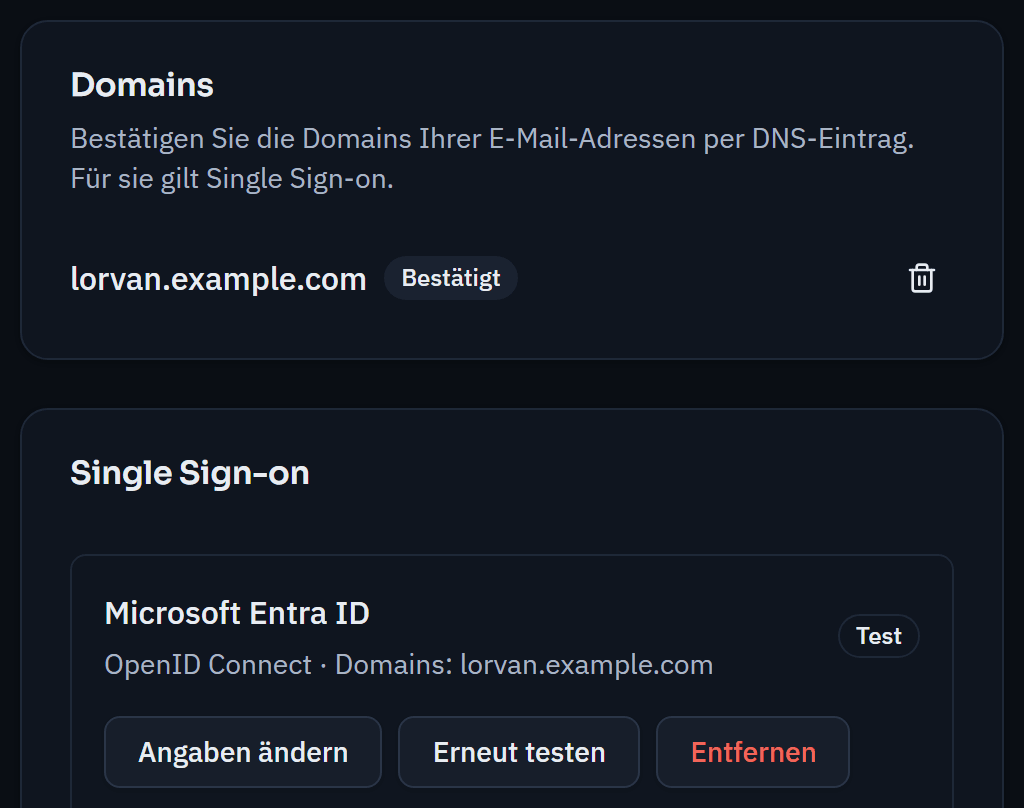
Setup
Step 1: Generate a token in Varmo
Generate a token and choose its validity.
Menu path: Administration › Provisioning from Entra ID › “Generate token”
Validity:180 days1 yearResult: Varmo shows the tenant URL (…/scim/v2) and the secret token once – copy both.
Details
- You receive a task before it expires.
Step 2: Set up provisioning in Entra
In the enterprise application your people use to sign in to Varmo, set up automatic provisioning.
2a: Open the application: or “New application” › create your own application that is not in the gallery.
Menu path: entra.microsoft.com › Enterprise applications › Your application for Varmo
2b: Enter the connection: Provisioning mode “Automatic”, enter the tenant URL and secret token, “Test connection” and save.
Menu path: Provisioning › “Get started”
2c: Check the attributes:
userName←userPrincipalName,emails[type eq "work"].value←mail, plusdisplayName,name.givenName,name.familyName.2d: Assign people
Menu path: Users and groups › “Add user/group”
Important:Assign individual people, not groups: Varmo does not import groups.
2e: Start provisioning
Menu path: Provisioning › Overview › “Start provisioning”
Result: The first cycle takes a few minutes; after that, Entra synchronises roughly every 40 minutes.
Details
- The tenant URL and token are under Admin credentials. The attribute mapping only appears after saving (new view: separate menu item “Attribute mapping” with the Users and Groups tabs; older view: “Mappings” section).
- Further fields such as city may remain; Varmo does not import them.
- The row for active (e.g. Switch([IsSoftDeleted], …)) is sometimes missing or not visible in the new view – then change nothing: Varmo also locks a person when Entra deletes them.
- Older view: under Mappings, set “Provision Microsoft Entra ID Groups” to “No”; the new view has no switch for this.
- If you assign a group, Entra transfers its members but reports an error for the group itself in the provisioning log.
- The scope “Sync only assigned users and groups” is the default; do not choose “Sync all users and groups”.
- Older view: set the provisioning status to “On” and save. “Provision on demand” transfers a person immediately; the result for each person is in the provisioning logs.
What Varmo takes over
- If the person already exists (same email address), they are linked; functional roles, responsibilities and data remain.
- Entra never deletes anything in Varmo.
- People sign in exclusively via single sign-on; Varmo does not send invitations.
All rules in detail
- New person: profile with name and email, only “Employees” (report, read policies) – does not count as a user in your plan. You assign functional roles in Varmo.
- Changes: name and email address (only within your verified domains).
- Deactivated, no longer assigned or deleted: Varmo locks access immediately and ends all sessions. If the person has functional roles or responsibilities, the Tenant Admins receive a task to reassign them.
- Entra never locks Tenant Admins: the other Tenant Admins receive the task “Check leaver from Entra ID”.
- Reactivated in Entra: Varmo only unlocks people whom Entra had locked; people locked manually remain locked.
Security and traceability
- Verified domainsOnly email addresses in your verified domains; people from other organisations remain unaffected.
- Token as a hashOne token per organisation, stored only as a hash, with expiry and revocation.
- Administration logEvery takeover, change, lock and unlock is recorded there with “Microsoft Entra ID” as the source.
If something doesn’t work
The provisioning log in Entra states the reason in each case.
HTTP 401“Test connection” fails
Copy the token again or generate a new token in Varmo; expired or revoked tokens are not valid.
HTTP 403“Single sign-on not set up”
Activate sign-in via your company in Varmo.
HTTP 400“verified domain”
The person’s email address does not belong to a verified domain – verify the domain in Varmo or do not assign the person.
HTTP 409“cannot be used”
The email address is already in use elsewhere.
HTTP 403“Groups are not imported”
Remove the group from the application and assign the people individually (older view: switch off provisioning of groups).
The person does not appear
Are they assigned to the application, and is their email address (Properties › Email, otherwise the user principal name) in a verified domain?
Switch off
In Varmo
- Revoke the token
In Entra ID
- Provisioning status “Off”
People already provisioned remain unchanged; you then lock leavers manually again.
Microsoft, Entra, Intune and Teams are trademarks of Microsoft Corporation; JIRA is a trademark of Atlassian; ServiceNow is a trademark of ServiceNow, Inc. Their mention does not imply a partnership.
Frequently asked questions
Which rights do people from Entra ID receive?
New people only arrive as “Employees” (report, read policies) and do not count as users in your plan. You still assign functional roles and rights in Varmo.
What happens when someone leaves?
If a person is deactivated, no longer assigned or deleted in Entra ID, Varmo locks access immediately and ends all sessions. Entra never locks Tenant Admins; instead, the other Tenant Admins receive a task. Entra never deletes anything in Varmo.
Does provisioning require single sign-on?
Yes. Sign-in via your company with Microsoft Entra ID must be active in Varmo and the domain of your email addresses verified. In Entra ID, you need a licence with automatic provisioning to your own applications (Microsoft Entra ID P1).
How close are you to ISO/IEC 27001?
In a personal demo, we show you the way to the readiness report, with no obligation. Or try it free for 30 days with every feature.